
11 / 23 · OH_ PLUGIN
Manga Bubble
Manga speech bubbles in 12 styles. Just pick one from the gallery.
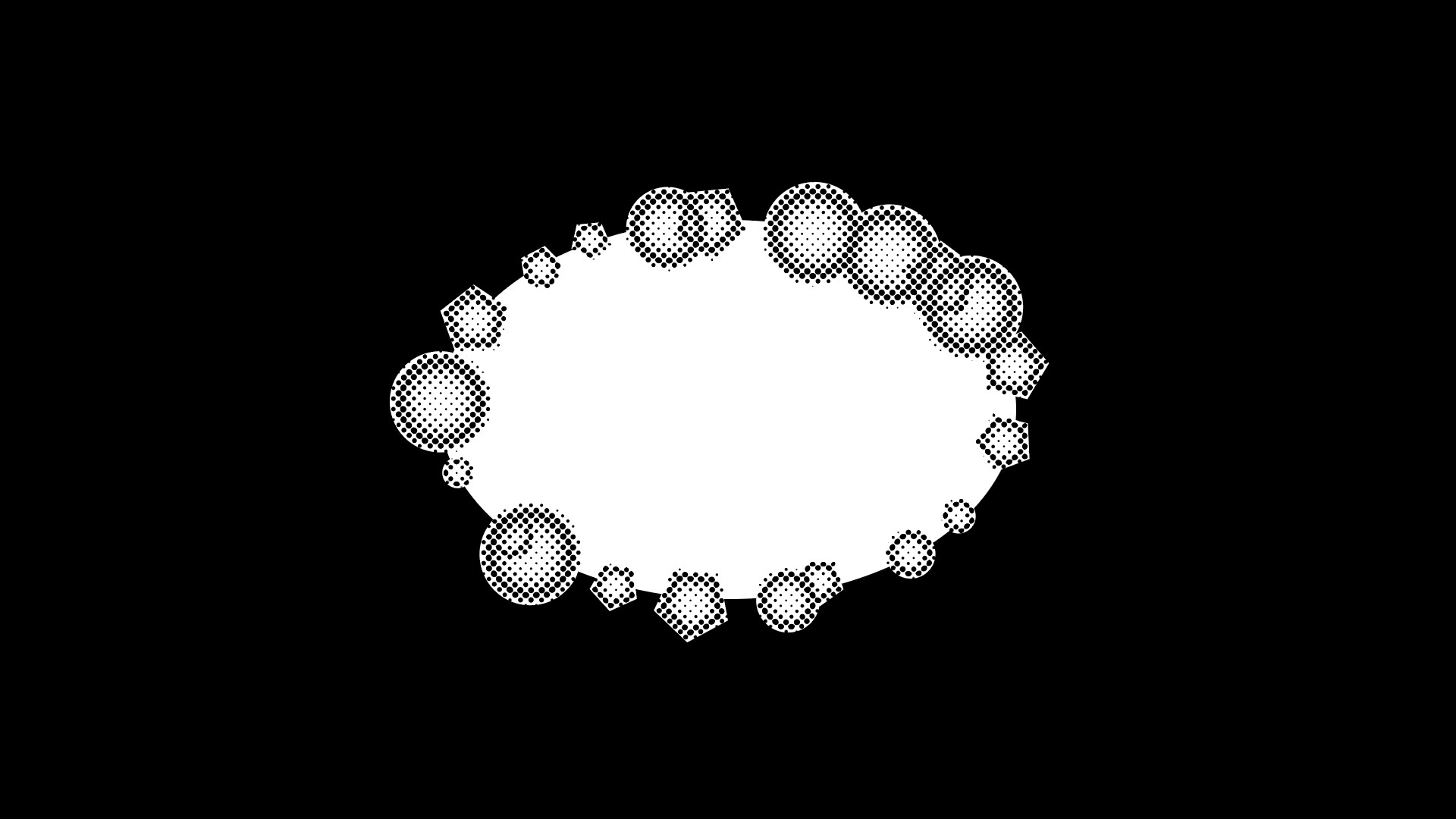
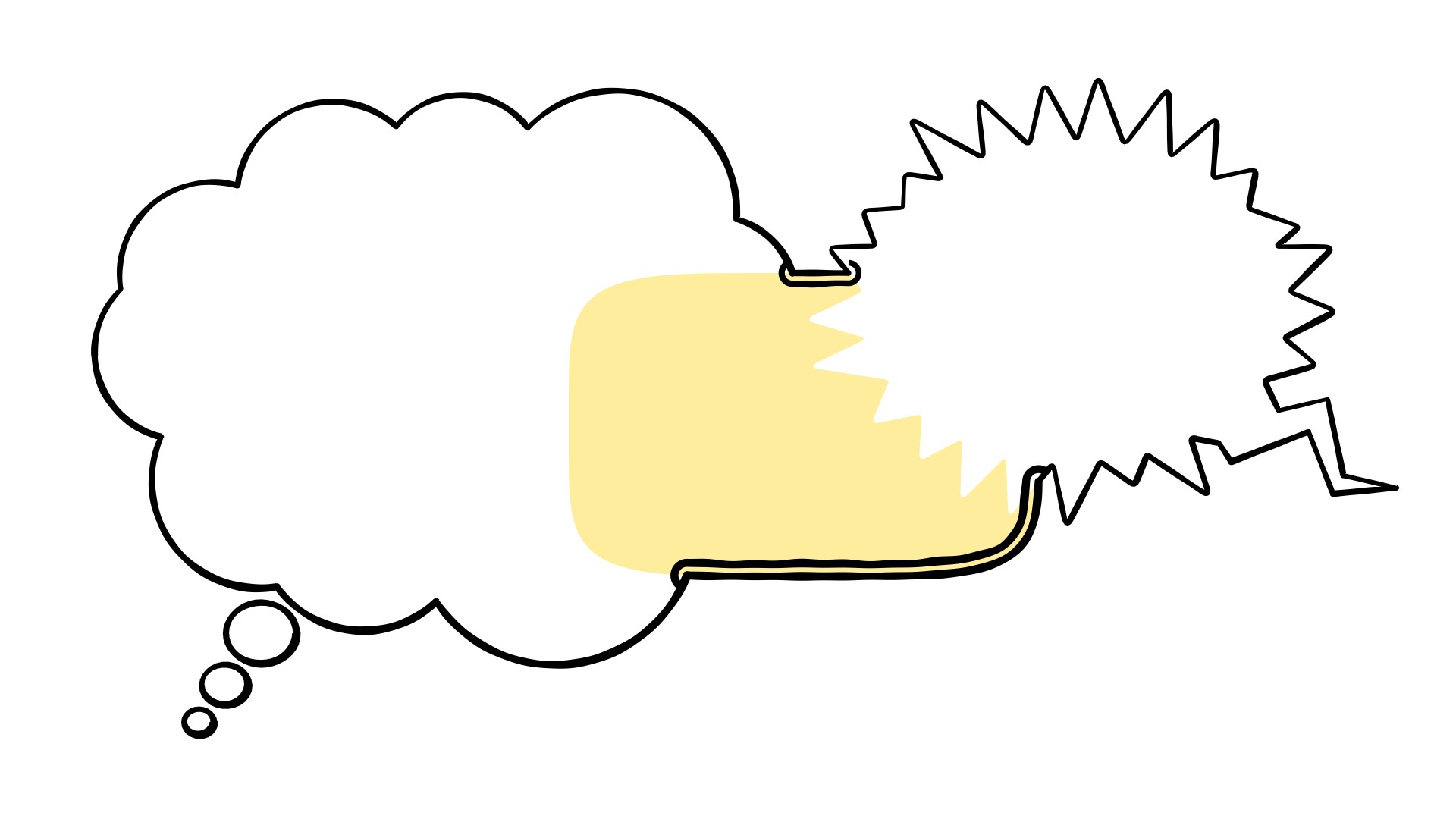
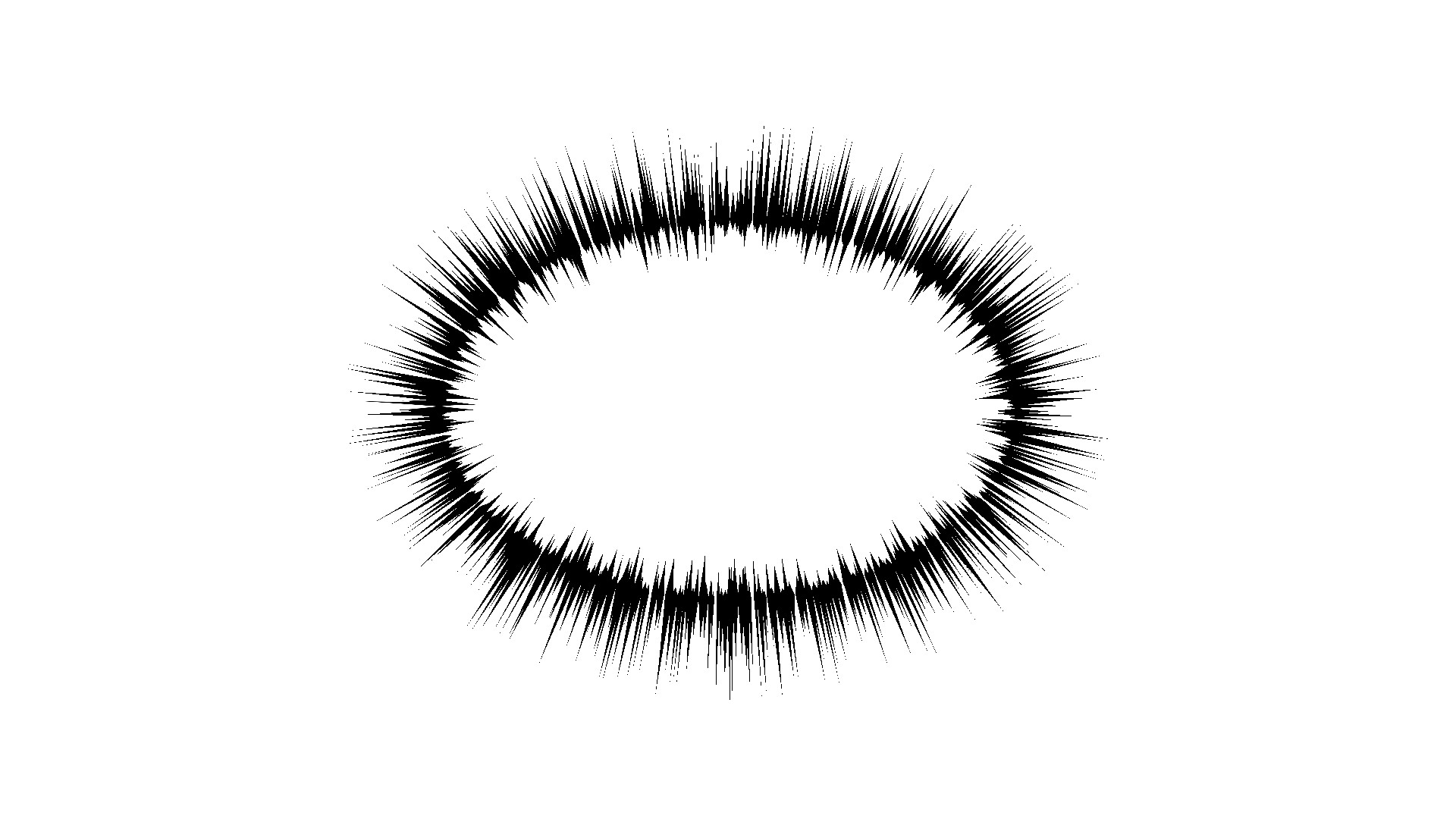
Draws speech bubbles in 12 styles (round, box, polygon, cloud, spiky, explosion, flash, shaky, pinched, fuzzy, splash and happy) with solid, double, dashed, dotted or ticked lines, and pointed, lightning or thought-bubble tails. Just click a picture in the gallery at the top of the effect to switch styles. Applied to a text layer, the bubble is drawn behind the text and sized to fit it (Fit Timing locks the size while the text is typing on); applied to a solid, it's sized manually. Roundness takes any style from square to round, and the spiky styles let you round the tips and valleys separately. You can add a long shadow too. Stack several on the same layer and they all show; those with Merge with Others turned on join into one body, with the line running only around the outside.
Parameters
The same order as the Effect Controls panel. Hover (or tap) an item for its description. The sliders move too (the picture doesn’t).
—
Hover a parameter and its description appears here.
Tips
- The quickest way: pick the closest look in the gallery first, then fine-tune Density, Depth and Randomness in the Shape group.
- Round with Roundness at 20-40% gives a rounded-rectangle dialogue box. For Spiky, a little Outer Roundness softens the shout.
- Duplicate the effect (Ctrl/Cmd+D) and offset Position to get two bubbles joined into one shape. Different styles are fine too (a cloud merged with a spiky one, for example).
- With several bubbles, the Text, Follow Layer Transform and Fit Timing settings come from the bottom-most Manga Bubble (they're grayed out in the ones above).
- To point at the speaker, set Tail Mode to Point at Tip and place Tail Tip near their face. The tail keeps pointing at the same spot even when the text moves.
- A little Line Shift gives a retro feel, like the misregistration of cheap printing.